Record
In the RECORD field, you can check the workflow status in your OPTINIST_DIR and manage your analysis pipeline. The table lists all the pipelines in your OPTINIST_DIR.
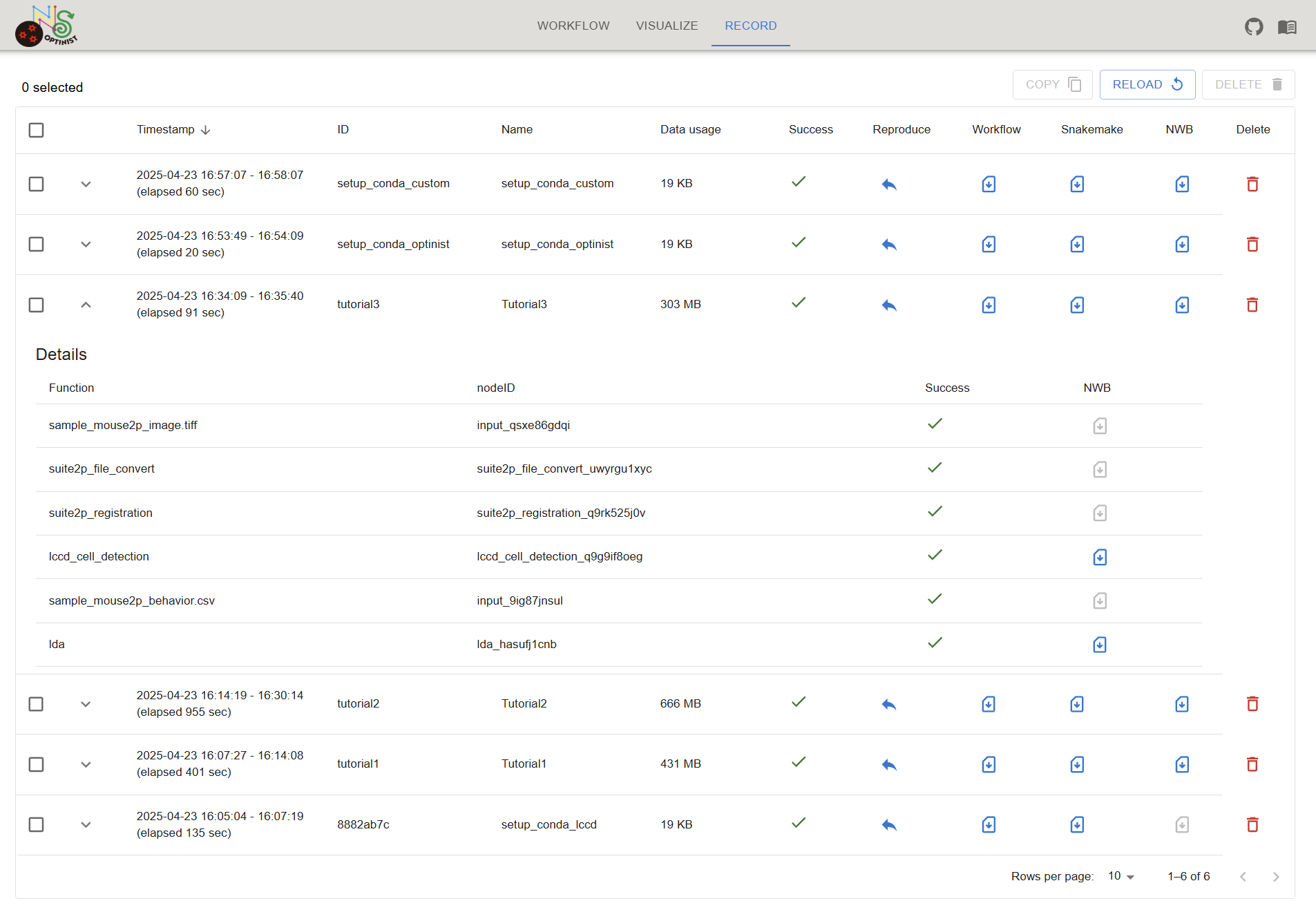
Record Table
In RECORD table, you can:
See past executed workflows
Reproduce past workflow
Download files
Workflow config file
Snakemake config file
Results as NWB files
Copy workflow record
Check the output data size
Delete workflow record
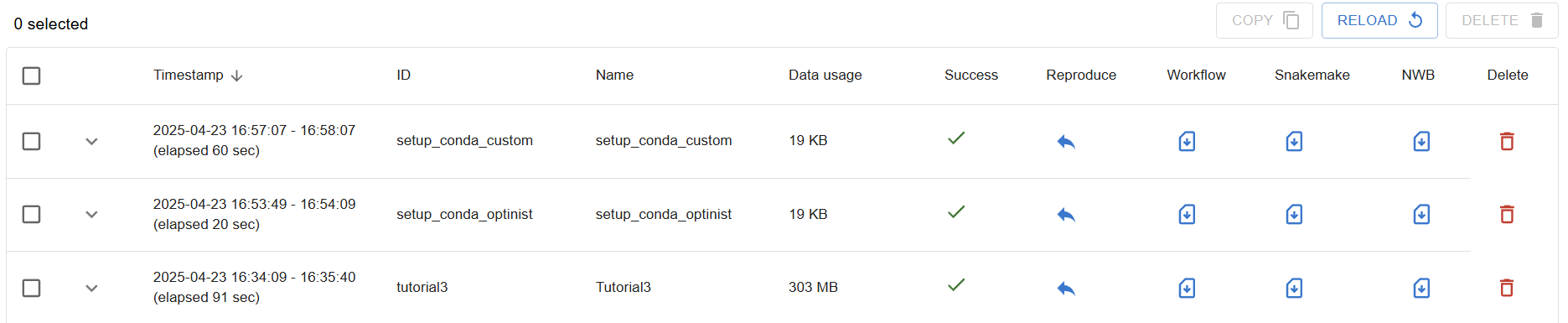
Header |
Description |
|---|---|
Timestamp |
Latest execution timestamp. |
ID |
Workflow’s unique id. |
Name |
User-defined workflow name. You can edit the name by clicking the name. |
Data Size |
Record Output data size can be checked with this. |
Success |
Workflow’s status. Success, error or running. |
Reproduce |
Button to reproduce the workflow to the WORKFLOW field. |
Workflow |
Button to download the workflow config yaml file. |
SnakeFile |
Button to download the snakemake config file. |
NWB |
Button to download the analysis results as NWB file. |
Delete |
Button to delete the workflow record from the OPTINIST_DIR. |
Details
You can check the results of each node by clicking arrow icon on the left of the table.
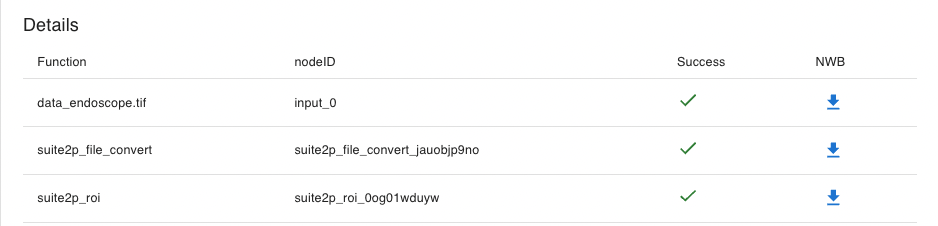
Header |
Description |
|---|---|
Function |
Name of the node. |
nodeID |
Unique id of the node. |
Success |
Node’s status. Success, error or running. |
NWB |
Button to download the analysis results for the algorithm as NWB file. |
If status is error, you can see the error message by clicking status icon.
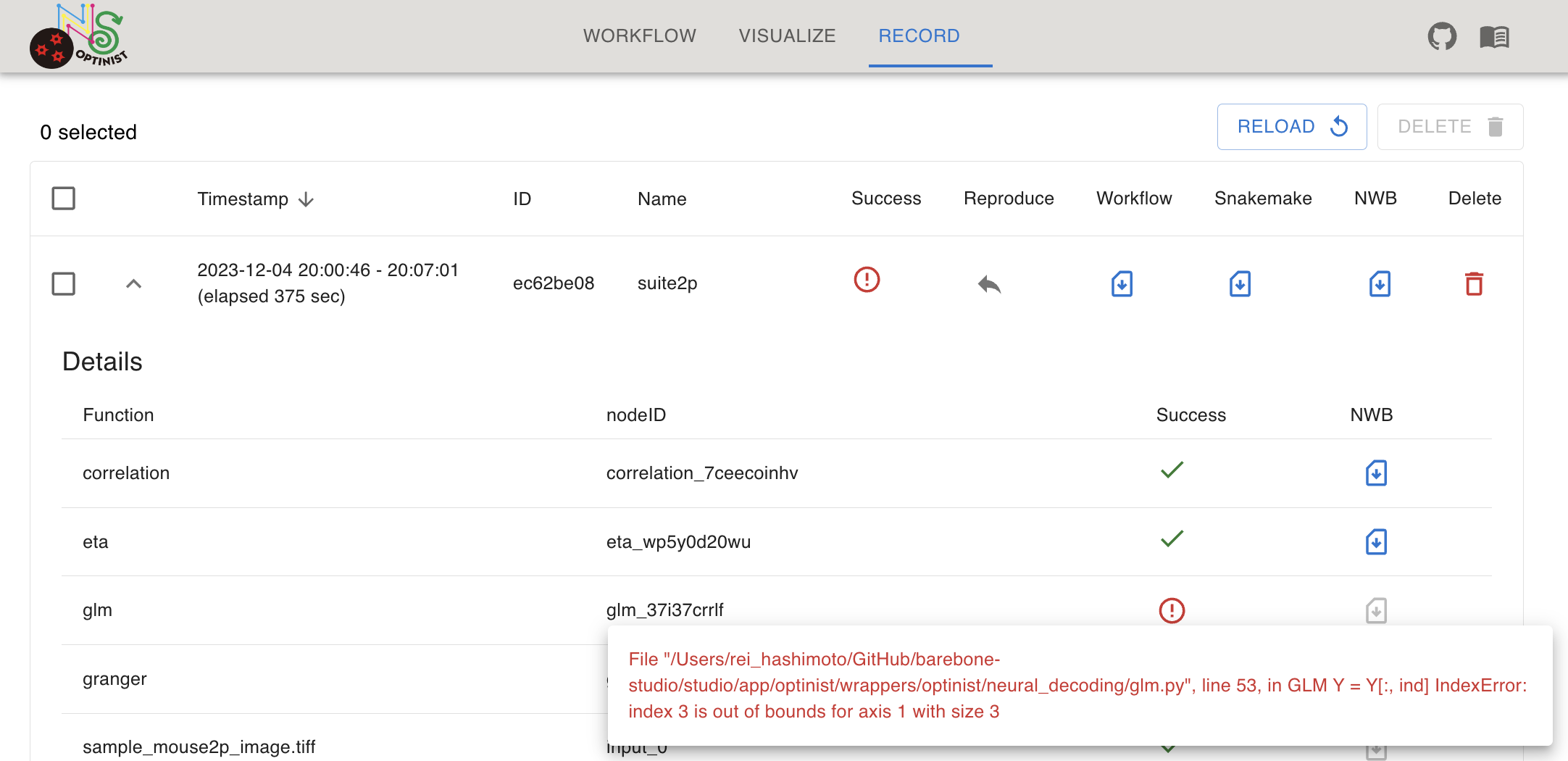
Reproduce Button
Clicking the Reproduce arrow retrieves the pipeline onto the workflow.
This function is convenient when you want to check the results of the past workflow or reuse the same analysis pipeline.
Note
You needed to RUN the reproduced workflow to visualize the results until version 1.1.0. From version 1.1.0, you can visualize the results without running the workflow.
Download Buttons
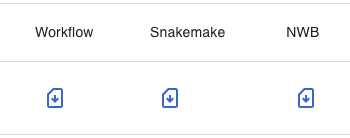
You can download 3 types of config files here.
FileType |
Description |
|---|---|
Workflow |
It includes the workflow and parameters information to reproduce in OptiNiSt GUI. |
SnakeFile |
It includes the workflow and parameters information used by Snakemake. |
NWB |
NWBfile which contains the data and its analysis results. |